

Many times the same message is needed again and again on WhatsApp. It includes address, full name, and email ID or some other things that are used again and again. In such a situation, typing again and again on WhatsApp takes both time and effort. To avoid this, you can do a setting on your WhatsApp, with this setting you will not have to type and send the same message again and again. As soon as you write two words next to this message, the entire message will be shown in front of you.
You will get rid of extra typing.
If you want to avoid the hassle of typing the message again and again, then you do not have to do much for this. For this, first, open your WhatsApp. After opening WhatsApp, open someone's chat, after the chat opens, write the message here that you want to save.
After typing the message, select the entire message and copy it. You will see a box in the corner of the keyboard below the typed message. After clicking on this, you will see the clipboard option.
After going to the clipboard, your message will be shown in the recent. If you long press on this message, 3 options will open in front of you, select the pin option from these three.
After this, whenever you want to send that message to someone, if they write the next two words, then the entire message will be shown in the suggestion. But if it does not happen, you have to click on the box showing in the corner and go to the clipboard here, here you will see the message, click on it and send it.
Send a message to 256 people at once
WhatsApp's broadcast feature allows you to send messages to 256 people at once without creating a group. To create your new broadcast list, open your WhatsApp, and click on the three dots showing on the right side. Here you will see the New Broadcast feature, click on it.
After clicking on New Broadcast, select the contacts you want to add to the list. You can add a maximum of 256 contacts to a list. After adding members, click on Done. You can give the broadcast list a name of your choice. After the broadcast list is created, you have to enter the message you want to send to everyone. This message will go to all the people on the list at once.
-
How to Make Mango Rasmalai: Mix the magic of mango in Rasmalai, you will get special summer taste in every bite! Know this easy recipe of chef

-
May 30 Horoscope: Will you get the fruits of your hard work with the blessings of Jupiter and Shanidev or not? Know

-
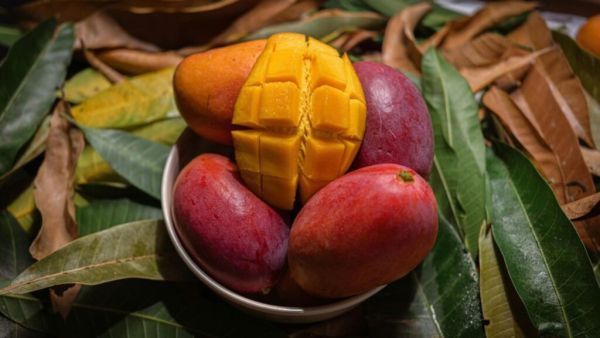
This Is The Most Expensive Mango In The World, Worth Rs 3 Lakh A Pair
-
What exactly is the white smoke seen during rocket launch?

-
Top 5 Century Hitters In IPL History