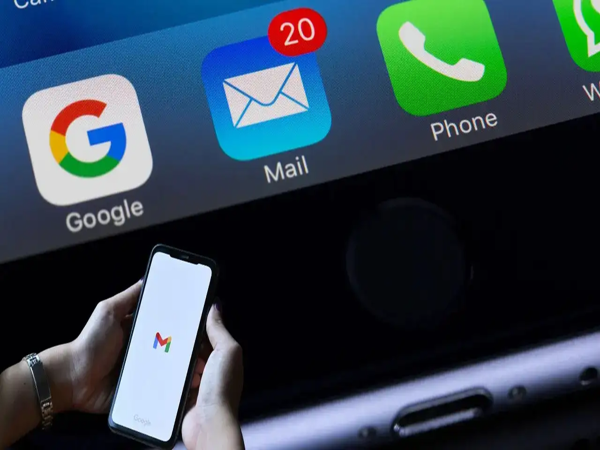
In today's world, Gmail is no longer just a medium for personal conversation; it has become the most widely used email service for job applications, banking, business, and office communication. Consequently, if your important emails land in the recipient's Spam folder instead of their Inbox, you could miss out on crucial information and suffer professional setbacks.
If you are facing this issue, there is no need to panic. This problem can largely be resolved by correcting a few common mistakes and adjusting your settings.
**How to fix the issue on a computer**
**1. Move emails out of the Spam folder**
If an email from a trusted contact has ended up in Spam, move it out immediately.
Open Gmail.
Click on 'More' on the left-hand side and open the 'Spam' folder.
Check the box next to the email you want to move.
Select the 'Not spam' option that appears at the top.
This significantly reduces the likelihood of future emails from that address being marked as spam.
**2. Add the sender to Google Contacts**
Google states that emails from addresses saved in your Contacts usually do not go to Spam.
Open Google Contacts.
Click on 'Create contact'.
Enter the name and email address.
Click on 'Save'.
**3. Create a filter in Gmail**
If you want to ensure that messages from a specific email address never go to Spam, you can create a filter.
Open Gmail on your computer.
Click on 'Show search options' in the search bar at the top.
Enter the relevant email address in the 'From' box.
You can first click 'Search' to verify that the correct emails are being found.
Now, click on 'Create filter'.
Select the 'Never send it to Spam' option.
Finally, click on 'Create filter'.
**What to do on Android and iPhone?**
**Remove emails from Spam**
Open the Gmail app.
Go to Menu > Spam.
Open the relevant email. Tap the 'More' menu shown above.
Select the 'Report not spam' option.
Save to Contacts
Open the Contacts app on your phone.
Tap the 'Add' button.
Enter the name and email address.
Tap 'Save'.
If you do not have the Contacts app on your phone, you can download it.
Note
According to Google, the option to create a filter in Gmail is available only on a computer. This means you cannot create filters using an Android phone or an iPhone. If you want a permanent solution for a specific email address, you must open Gmail on a computer and set up a filter.
Disclaimer: This content has been sourced and edited from Amar Ujala. While we have made modifications for clarity and presentation, the original content belongs to its respective authors and website. We do not claim ownership of the content.
-
‘Would You Do The Scene Without Clothes?’ Saif Ali Khan Recalls Vishal Bhardwaj’s Request On ‘Omkara’ Set

-
Stay One Step Ahead This Monsoon With These 5 Smart Lifestyle Habits
-
iQOO Z11 Lite 5G Is Almost Here: Here's What We Know Before The Launch
-
Who Is Arnav Paparkar? Indian Teen Ending 36-Year Wimbledon Drought

-
CBSE Class 10 Second Board Result 2026 This Weekend? Check Big Update Here, And Steps To Download Scorecard