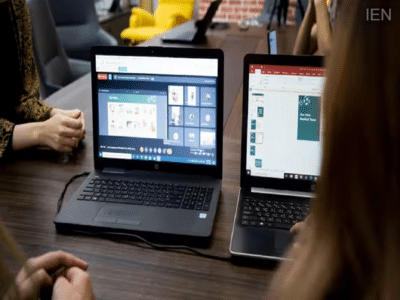
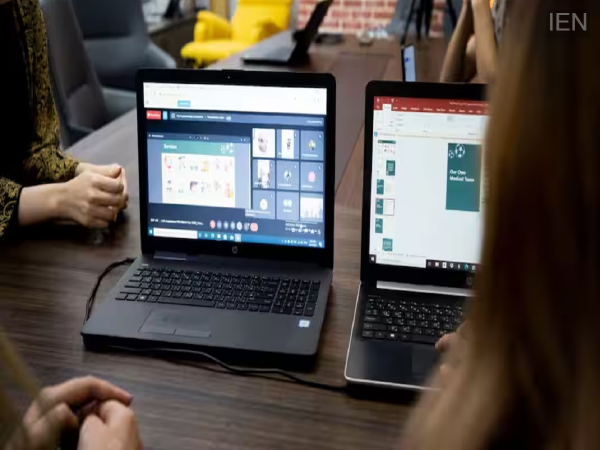
Laptop Shortcuts: People often repeatedly use the mouse for minor tasks, which consumes extra time. However, with the help of a few simple Windows shortcuts, many tasks can be completed in just a few seconds.
Laptop Shortcuts: Nowadays, the use of laptops or computers is not limited to the office alone. Studying, online meetings, content creation, data entry, and many daily tasks are now performed on computers. In this context, keyboard shortcuts prove very helpful in increasing work speed and saving time. People often repeatedly use the mouse for minor tasks, which consumes extra time. However, with the help of a few simple Windows shortcuts, many tasks can be completed in just a few seconds. So, let us tell you about five shortcuts you should learn if you use a laptop; they will help you finish hours of work in minutes.
Shortcut for Closed Tabs
While browsing the internet, we often accidentally close an important tab. Finding the website again takes time. Pressing Ctrl+Shift+T instantly reopens the recently closed tab. If multiple tabs have been closed, pressing this shortcut repeatedly allows you to reopen them in sequence. This feature is extremely useful for those who work with multiple tabs simultaneously.
Clipboard History
Typically, Ctrl+C is used to copy text or images, and Ctrl+V is used to paste them. However, the standard clipboard saves only one copied item at a time. Pressing the Windows key + V opens the clipboard history. This displays previously copied text and images, which can be reused whenever needed. It also eliminates the hassle of repeatedly copying the same information.
Split-Screen Feature
While working or studying, one often needs to view information in one window while working in another. Constantly switching between windows can slow down your workflow. Using the “Windows key + Left Arrow” or “Right Arrow” keys allows an open window to snap to one half of the screen. You can then open a second window in the remaining half. This way, both windows are visible simultaneously, making multitasking much easier.
Snipping Tool
If you need to take a screenshot of a specific area rather than the entire screen, the “Windows key + Shift + S” shortcut is extremely useful. Pressing this activates the built-in Windows Snipping Tool. The user can then select the desired area of the screen to capture. The screenshot is saved directly to the clipboard, allowing it to be pasted later into a document, email, or chat using “Ctrl + V.”
Desktop Shortcut Key
Often, multiple applications, folders, and browser tabs remain open on the screen while working. Accessing the desktop usually requires minimizing each window individually. Instead, pressing “Windows key + V” instantly minimizes all open windows, taking the user directly to the desktop. Pressing the same shortcut again restores all windows to their previous state.
-
Nathaniel Brown: The left back Germany have been waiting for

-
Wegovy pill in UAE: Prices, doses and why first-time users are showing interest

-
India's Air Force delivers leaked NEET retest papers

-
Family of killed Indian sailor seeks 1 cr compensation, martyr status

-
Six Uddhav Sena MPs skip party meeting amid speculation of defections