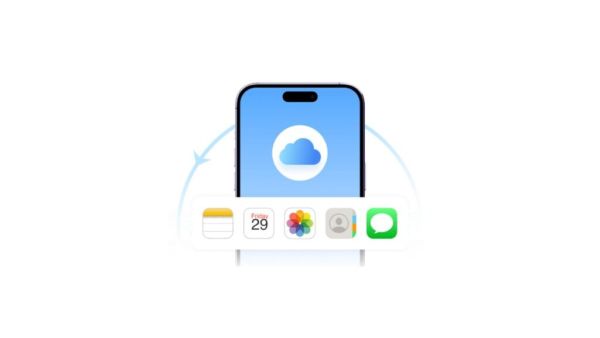
It is indeed annoying if you lose the important data on your iPhone – especially when you do not have a backup. However, does that really imply that your data is lost forever? This is not always the case. In fact, there are instances where you can recover iPhone data like photos, messages, contacts, and other files depending on the ways and times the data was lost.
The article throws light on certain super-effective methods to recover iPhone data scenarios when we have not backed up iPhone. Methods include iPhone default data recovery, iCloud sync-based data recovery, and third-party recovery tools like Dr.Fone Data Recovery (iOS) – which is a tool that scans your iPhone and lets you preview files before restoring. Read on to know more!
Is It Really Possible to Recover iPhone Data Without Backup?
Yes, you can recover iPhone data even if you don’t have a backup. This is because iOS doesn’t erase the files right away when you delete them. Instead, the files remain on your phone until new ones replace them. Recovery varies on the basis of the time elapsed, phone usage after deletion, and the type of data, normally photos and messages are easier to recover than system files.
When You Can (and Cannot) Restore iPhone Data
Situations where recovery is possible:
Most of the time, you can get back your iPhone data that you have deleted by mistake. These types of data loss can also be due to app crashes, unsuccessful iOS updates or the data being still resident in the temporary system storage of the device.
Situations where recovery is unlikely:
It is very unlikely that data can be recovered if the iPhone is factory reset without being backed up, deleted data is already overwritten, or device is damaged.
Method 1 – Check “Recently Deleted” and Built-in iPhone Features
How It Works
iPhone temporarily holds deleted items in built-in “Recently Deleted”, giving users the opportunity to recover the deleted items.
Steps
Step 1. Open the Photos app on your iPhone
Step 2. Go to Album and scroll down to Recently Deleted
Step 3. Select the files you want to recover Tap Recover to restore them
Other Built-in Options
Besides, the native apps such as Notes, Files, and even Messages store deleted items in their “Recently Deleted” folders for a short period of time. So, you can get your data back from these apps as well. Nevertheless, recovery of Messages will only be possible if your iOS settings and message retention configuration support it.
Best For
- Recently deleted files
- Quick, no-software recovery
Method 2 – Restore iPhone Data via iCloud Sync (Without Backup)
iCloud sync differs from an iCloud backup as it is a process of continuous synchronization of certain data types across devices rather than taking a full snapshot of the device. Therefore, data such as contacts, photos, and calendars could still be stored in iCloud even if you didn’t make a complete backup.
Steps
Step 1. Sign in to your Apple ID on your iPhone.
Step 2. Go to Settings > iCloud.
Step 3. Enable sync for the required data types (Photos, Contacts, Calendars, etc.) Allow the device to re-sync and download available data from iCloud.
Note: Your data might still be accessible from iCloud if syncing was enabled earlier, so in that case, you can restore it just by logging back into your account.
Best For
- Users with iCloud enabled
- Recovering synced content
Method 3 – Use Professional Tools to Recover iPhone Data
If the built-in features or iCloud sync don’t meet your requirements, third-party recovery tools can come to your rescue as they scan the internal storage of your phone to find deleted or lost files that are not visible in the system anymore.
One of these tools is Dr.Fone Data Recovery (iOS). The tool lets you carry out a free scan and see the data before you get it back. It works with picture files, text messages, contacts, call logs, WhatsApp messages, and more than 35 other data types. In addition, it offers selective restore functionality so that users can retrieve only the files they want instead of restoring them all. The tool operates in read-only mode with local processing to prevent data overwriting, while at the same time maintaining user privacy and allowing safe recovery of iOS devices, iCloud sync, and iTunes backups.
Steps
Step 1. Run Dr.Fone on your PC and click on Toolbox > Data Recovery to start the recovery feature.
Step 2. Pick iOS Device as the platform and then hit the option Recover Data from iOS Device.
Step 3. Use a USB cable to connect your iPhone to the computer, check the types of files that you want to recover, and hit Start Scan to scan your device area.
Step 4. One the scanning is done, you can preview the recoverable data, mark the ones you want, click Restore to Deviceand do what the screen prompts you to do for a complete recovery.
Method 4 – Stop Using Your iPhone Immediately (Critical Tip)
When you delete data, it doesn’t disappear immediately; it can be overwritten eventually by new data that you save on your device. The more you keep on using your iPhone like taking photos, downloading apps, or getting files the greater the likelihood that the lost data will be totally replaced and therefore cannot be recovered.
If you want to increase the chances of recovery, the first thing you should do is enable Airplane Mode and refrain from any activities such as taking new photos, installing apps, or downloading files. Time is of the essence here because using the device less is the main factor that determines how successful data recovery will be.
Conclusion
Losing important data on your iPhone without a backup is really frustrating but it is not the end of the road. iPhone’s built-in tools, iCloud backup and restoration of deleted data are still possible if the files have not been overwritten yet, as shown by the examples. Besides, your chances of success pretty much rely heavily on how fast you react and the overall state of your device.
In severe situations, a professional software like Dr.Fone – Data Recovery (iOS) acts as a powerful tool to ease your work by scanning your iPhone, displaying the files that can be retrieved, and allowing you to get back photos, messages, contacts, and other vital data, which might not require a backup at all.
-
Jim Davidson takes jab at BBC as Big Break reboot with new hosts confirmed

-
Odisha Govt Opts For Austere Low-Key Celebrations To Mark 2 Years In Office Amid Global Energy Crisis

-
Short fiction: Dalit women in a Punjab village ward off lecherous dominant-caste men

-
ED freezes Rs 526 crore deposits in money laundering probe against Gameskraft

-
Madhya Pradesh: Three killed, 15 hurt in Dewas firecracker factory blast