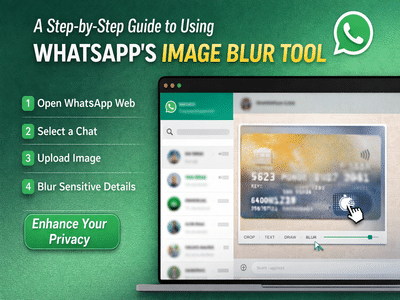
In an effort to strengthen user privacy, WhatsApp has expanded its image editing capabilities by introducing a blur tool for desktop beta users. This feature, which was previously available on the mobile app, is now making its way to WhatsApp Web, allowing users to quickly conceal sensitive information before sharing images.
The addition of the blur tool is particularly useful for users who frequently share screenshots, documents, or personal photos online. It enables them to hide confidential details—such as phone numbers, addresses, or financial information—without needing third-party editing apps. With growing concerns around digital privacy, this feature offers a simple yet effective solution.
What Is WhatsApp’s Blur Tool?The blur tool is part of WhatsApp’s built-in image editing suite. It allows users to selectively blur portions of an image, ensuring that private or sensitive content is not visible to recipients. This can be especially helpful when sharing images in professional or public groups where privacy is a priority.
Now available on WhatsApp Web for beta users, the feature ensures a seamless editing experience across devices, eliminating the need to switch between phone and desktop for quick edits.
Why This Feature MattersWith the increasing exchange of visual content online, users often unintentionally share images containing personal or confidential information. The blur tool addresses this issue by giving users more control over what they share.
Whether you're sending a screenshot of a conversation, a document, or a photo taken in a public place, the ability to blur specific areas ensures that only the intended information is visible.
Step-by-Step Guide to Use WhatsApp Image Blur ToolFollow these simple steps to blur parts of an image before sending it on WhatsApp Web:
Step 1: Open WhatsApp Web
Launch WhatsApp Web on your browser and log in by scanning the QR code using your smartphone.
Step 2: Select a Chat
Open the chat where you want to send the image.
Step 3: Upload an Image
Click on the attachment (paperclip) icon and select the image you wish to share.
Step 4: Access Editing Tools
Once the image is uploaded, WhatsApp will open an editing window. Here, you’ll find several tools such as crop, draw, add text, and blur.
Step 5: Choose the Blur Tool
Select the blur option from the toolbar.
Step 6: Blur Sensitive Areas
Click and drag over the parts of the image you want to hide. You can adjust the size of the blur brush for more precision.
Step 7: Preview and Send
Review the edited image to ensure all sensitive information is properly blurred. Once satisfied, click the send button.
Currently, the blur feature is being rolled out to beta users on WhatsApp Web. Users who do not yet see this option may need to update their browser or wait for the wider rollout. The feature continues to be available on mobile versions of the app as well.
Final ThoughtsThe introduction of the blur tool on WhatsApp Web marks a significant step toward enhancing user privacy and convenience. By integrating this feature directly into the platform, WhatsApp eliminates the need for external editing tools and simplifies the process of safeguarding personal information.
As digital communication continues to evolve, features like these highlight the growing importance of privacy-focused innovations. For users, it means more control, better security, and a smoother messaging experience—all within a single app.
-
Mahima Chaudhry Reflects on Her Early Career and Industry Changes

-
Celebrities are 'nervous' about spending time with Meghan after Kardashian scandal
-
Exploring Women in Hindu Mythology Considered Virgin Despite Marriage

-
A Shocking Betrayal: Newlywed Bride Disappears After Just 50 Days

-
IPL 2026: Rain Disrupts KKR vs PBKS Match, Shreyas Iyer's Sister Mocks KKR